
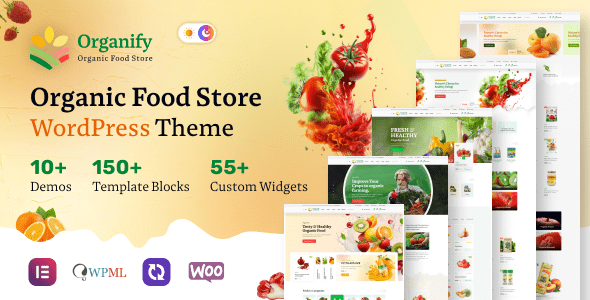
Organify is a WordPress theme specifically designed for the organic food industry, suitable for fresh grocery stores, market foods, grocery markets, organic e-commerce websites, organic food shops, organic markets, supermarkets, and online grocery platforms. Additionally, it is equally ideal for eco-product stores, fresh bread, bakeries, and even natural cosmetics shops. As a modern, responsive WordPress theme, Organify helps you quickly build a professional and appealing online store.
The Organify theme is renowned for its fresh, natural visual style and powerful features. It comes with multiple preset templates to help you kickstart your project quickly. The theme supports the WooCommerce plugin, allowing you to easily manage products, shopping carts, and payment processes. Meanwhile, Organify adopts a responsive design, ensuring perfect display on mobile phones, tablets, and desktop devices.
Core Features of the Organify Theme
Organify offers a wealth of features to meet the needs of organic food stores. It includes a drag-and-drop page builder, enabling you to customize page layouts without coding. The theme also integrates various product display methods, such as grids, lists, and carousels, to highlight your items. Furthermore, Organify supports multilingual and RTL layouts, making it convenient for expanding into international markets. If you are looking for a reliable WordPress theme resource, Organify is a great choice.
Why Choose the Organify Organic Food Theme?
Among many e-commerce themes, Organify stands out because it focuses on the organic and natural food sector. Its design elements, such as leaf icons, soft colors, and natural textures, convey a healthy, eco-friendly brand image. The theme is also optimized for SEO, helping your website achieve better rankings in search engines. Additionally, Organify's code is clean and efficient, ensuring fast loading speeds and enhancing user experience.
Installing and Configuring the Organify Theme
Installing the Organify theme is very simple: in the WordPress backend, go to "Appearance" > "Themes" > "Add New Theme," upload the theme file, and activate it. After activation, you can customize colors, fonts, and layouts through the theme options panel. It is recommended to install recommended plugins first, such as WooCommerce and Contact Form 7, to get full functionality. For specific steps, please refer to the official documentation.
Compatibility and Updates of the Organify Theme
Organify is compatible with the latest versions of WordPress and WooCommerce and is regularly updated to fix bugs and add new features. The theme also supports major browsers, including Chrome, Firefox, Safari, and Edge. If you need a localized version, you can import language files via the Loco Translate plugin. For specifics, please refer to the official documentation.
Frequently Asked Questions
How to install the Organify theme?
In the WordPress backend, go to "Appearance" > "Themes" > "Add New Theme," click "Upload Theme," select the Organify ZIP file, and activate it. For specifics, please refer to the official documentation.
What scenarios is the Organify theme suitable for?
Organify is suitable for online sales scenarios such as organic food stores, grocery markets, eco-product stores, bakeries, and natural cosmetics shops.
Is the Organify theme compatible with WooCommerce?
Yes, Organify is fully compatible with WooCommerce, supporting product display, shopping cart, and checkout functions.
Does the Organify theme have a localized version?
The theme itself supports multilingual functionality, and you can import localized files via Loco Translate or other translation plugins. For specifics, please refer to the official documentation.
How often is the Organify theme updated?
The developer releases new versions based on the update frequency of WordPress and WooCommerce, typically every few months. For specifics, please refer to the official documentation.


Comments (2)