
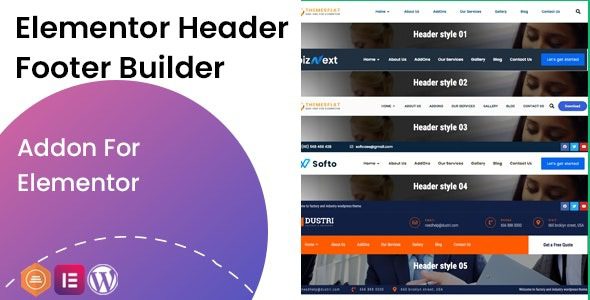
Elementor Header Footer Builder Addon is a WordPress plugin designed for creating headers and footers, allowing you to easily build professional-grade headers and footers without coding. This plugin seamlessly integrates with the Elementor page builder, offering an out-of-the-box experience. Whether for blogs, corporate websites, or e-commerce sites, it enables quick customization of unique header and footer layouts, enhancing your site's brand image and user experience.
In this article, we will delve into the features, installation methods, and usage tips of the Elementor Header Footer Builder Addon. As a WordPress plugin, it supports multiple preset styles and comes with a JSON file package for easy one-click import of demo templates. If you're looking for an efficient and flexible header and footer solution, this plugin is definitely worth trying.
Key Features of Elementor Header Footer Builder Addon
This plugin offers rich features that give you full control over your website's header and footer areas. You can create different layouts for various page types, such as homepage, post pages, product pages, and more. It also supports conditional logic, allowing you to show or hide specific elements based on user roles, device types, and other conditions.
- Drag-and-Drop Editing: Easily add and arrange elements using Elementor's intuitive interface.
- Preset Templates: Built-in multiple header and footer styles for quick design start.
- Responsive Control: Ensure perfect display on mobile, tablet, and desktop.
- Custom CSS: Provides code-level control for advanced users.
How to Install Elementor Header Footer Builder Addon Plugin
The installation process is very simple. First, download the plugin zip file from the official source. Then, log into your WordPress admin panel, go to the "Plugins" menu, click "Add New," upload the zip file, and activate it. After activation, you will see a new "Header Footer Builder" menu in your WordPress admin. Click to enter and start creating your first header or footer. For more detailed steps, visit our WordPress tutorial resource site for further guidance.
Creating Custom Headers with Elementor Header Footer Builder Addon
Creating custom headers is one of the core features of this plugin. You can design from scratch or import preset JSON templates. The plugin offers 08 preset header styles, covering common elements like navigation, logo, search bar, etc. After import, you can adjust colors, fonts, and layouts to match your brand needs. Additionally, you can set a sticky effect for the header, keeping it fixed at the top while scrolling.
Steps to Import Demo Templates
After purchasing the plugin, you will receive a package containing JSON files. In the plugin settings page, find the "Import Template" feature, upload the JSON file, and it's done. After import, all demo content will appear in your Elementor library, ready for use at any time. Note: Ensure the Elementor plugin is installed and activated before importing.
Use Cases and Compatibility
Elementor Header Footer Builder Addon is suitable for any WordPress website using Elementor. It is compatible with most popular themes, such as Astra, GeneratePress, OceanWP, and more. Whether you're building a corporate website, personal blog, or online store, it can enhance your site's professionalism. Additionally, the plugin is regularly updated to ensure compatibility with the latest versions of WordPress and Elementor.
Official Link: Elementor Header Footer Builder Addon on CodeCanyon
Frequently Asked Questions
Does Elementor Header Footer Builder Addon require Elementor Pro?
No, this plugin is compatible with both the free and Pro versions of Elementor. However, some advanced features may require Elementor Pro support; please refer to the official documentation for details.
How to ensure imported templates display correctly?
Before importing, confirm that your Elementor version is compatible with the plugin. If you encounter display issues, try clearing the cache or re-importing the template.
Does the plugin support multisite?
Yes, this plugin supports WordPress multisite networks and can be used independently on each subsite.
Is there a localized version of the plugin?
Currently, the plugin primarily offers an English interface, but you can install plugins like Loco Translate to translate it yourself, or wait for community localization.
How often is the plugin updated?
The developer releases regular updates to fix bugs and ensure compatibility with new WordPress versions. It is recommended to enable automatic updates to stay current.


Comments (0)