
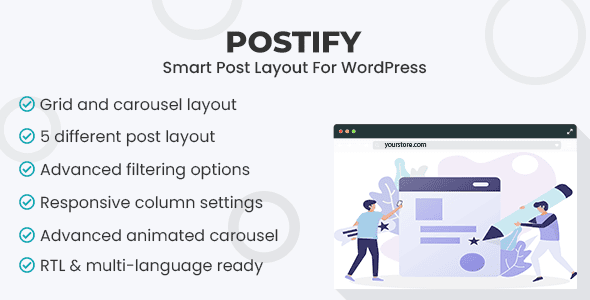
Introduction to the Smart Post Layout for Elementor Plugin
Smart Post Layout for Elementor is a WordPress post layout plugin designed specifically for the Elementor page builder, published by ThemeAtelier on CodeCanyon. It is suitable for editors and site maintainers who use Elementor to build blogs, news sites, or content-focused corporate websites, replacing hand-written query code to quickly generate post lists in grid or carousel formats. This offering is the Chinese version of the plugin, including plugin files, five grid styles, sample configurations, and documentation, ready to use out of the box.
Two Core Layouts of Smart Post Layout
The plugin's main layouts fall into two categories: grid and carousel. The grid arranges cards in rows and columns, with the number of columns configurable in tiers based on screen width to adapt to different devices; the carousel switches horizontally within the same screen and supports three modes: standard, centered, and marquee. The five grid styles correspond respectively to large-image priority, title priority, minimalist text, with excerpt, and with action buttons. Switching styles does not change the post data, only adjusting the information hierarchy and image proportions, making it easy to choose flexibly based on content type.
Filtering and Pagination Mechanisms of Smart Post Layout
The filtering function can combine categories, tags, and custom conditions to display only posts that meet the criteria, suitable for creating topic lists or related reading blocks. Pagination offers five styles: standard page numbers, numeric pagination, Ajax numeric paging, load more button, and Ajax loading. In carousel mode, you can also adjust column spacing, switching direction, and transition effects, with direction supporting left-to-right and right-to-left. Each post can individually toggle the title, excerpt, thumbnail, meta information, read more button, and social sharing, providing very fine-grained control.
Style Control and Customization of Smart Post Layout
Card corner radius, shadows, spacing, and image cropping are all adjusted within the Elementor element settings, and color schemes can follow the theme or be specified separately. The plugin provides a custom CSS entry for local fine-tuning, with changes applying only to the current block without affecting other parts. RTL and multilingual sites can be used directly, with labels and date formats following the site language settings. Block settings can be saved as templates and imported when switching sites, eliminating the need to reconfigure parameters—especially friendly for multi-site management. If you want to learn more about Elementor extension resources, you can visit the WordPress resource site.
Technical Composition and Compatibility of Smart Post Layout
This plugin depends on Elementor, is compatible with Elementor Pro's dynamic content and theme templates, and can coexist with WooCommerce without modifying product lists. The officially stated supported WordPress versions range from 4.9 to 6.7. The package files are CSS and PHP, lightweight in the backend, with scripts loaded on demand on the frontend. The changelog has fixed the issue of Ajax pagination not loading; after upgrading, it is recommended to regression test the pagination function once. For more product information, please refer to the official CodeCanyon page.
Smart Post Layout Specifications Overview
| Item | Description |
|---|---|
| Resource Type | Elementor post layout plugin |
| File Contents | Plugin files, five grid styles, sample configurations, documentation |
| Dependencies | WordPress, Elementor, Elementor Pro (optional) |
| Use Cases | Blog lists, news channels, case collections, related reading blocks |
Usage Tips for Smart Post Layout
- Placing multiple carousel blocks on the homepage simultaneously will slow down loading; it is recommended to keep only one per screen.
- Ajax pagination may conflict with caching plugins; after enabling caching, test whether pagination works properly.
- Card excerpt length is truncated by character count; when mixing Chinese and English, check the effect separately.
- When there are too many filter conditions, set a group of default values to avoid displaying an empty list on first entry.
Frequently Asked Questions
How to install Smart Post Layout?
Go to the plugins page in the WordPress backend, upload the plugin ZIP package, and activate it. After activation, ensure Elementor is installed and activated, then search for the "Smart Post Layout" block in the Elementor editor to drag and use. For specific steps, please refer to the official documentation.
What use cases does Smart Post Layout support?
It is suitable for pages that need to display post lists, such as blog lists, news channels, case collections, and related reading blocks. Through grid and carousel layouts, you can flexibly present content aggregations in different styles.
Is Smart Post Layout compatible with WooCommerce?
The plugin can coexist with WooCommerce but does not modify product lists; it is only used for displaying post types. If you need to achieve a similar layout in product lists, you will need to find a dedicated plugin separately.
How frequent are Smart Post Layout updates?
The plugin is maintained by ThemeAtelier, and the changelog shows that known issues are fixed and compatibility with new WordPress versions is maintained. For specific update frequency, please refer to the official release page or documentation.


Comments (0)