
WP Sheet Editor Courses Extension Plugin In-Depth Analysis
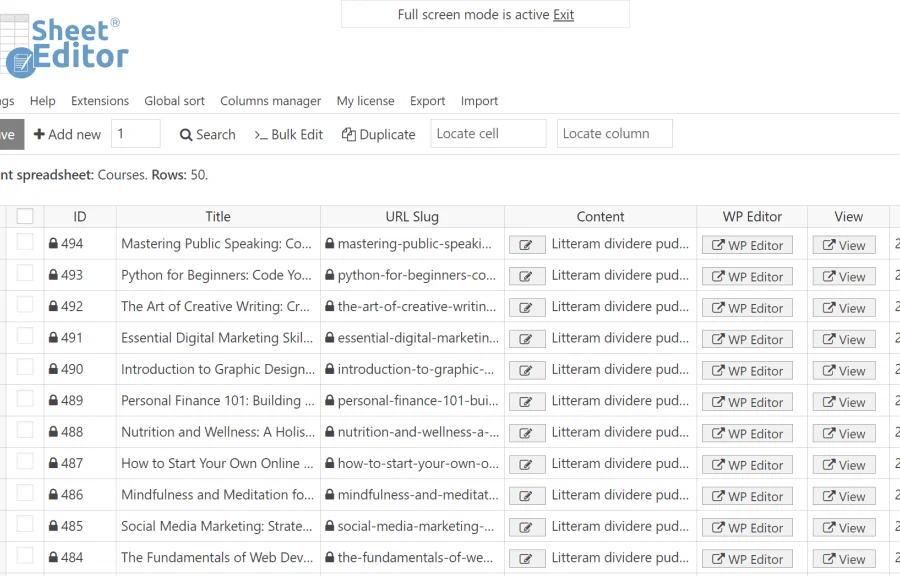
WP Sheet Editor Courses is an extension plugin in the WP Sheet Editor series specifically designed for course data management. It integrates courses, lessons, and student progress into a spreadsheet interface for bulk maintenance. This WordPress plugin does not change the business logic of the original course plugin; instead, it replaces the editing entry point: what previously required opening and modifying each lesson individually in the backend can now be done in a single table, adjusting the titles, order, and duration of dozens of lessons at once. The prerequisite for use is that the main WP Sheet Editor plugin is enabled and that a plugin carrying courses (such as LearnDash, LifterLMS, etc.) is already installed on the site. For users operating online education sites, this extension can significantly improve course maintenance efficiency.
Hierarchical Structure of the Three Core Data Tables
WP Sheet Editor Courses splits course-related data into three interrelated tables, each corresponding to a different management dimension:
- Courses table: Contains fields such as course name, description, category, price, and whether it is published, used to manage the overall information of courses.
- Lessons table: Covers attributes such as lesson title, associated course, sort number, duration, and whether it is a free preview, and is the table most frequently maintained on a daily basis.
- Students table: Records data such as enrolled courses, progress percentage, completion time, and grades, making it easy to track student learning progress.
The three tables are linked via course identifiers. If the identifiers do not match, lessons cannot be attached to the corresponding courses, and orphaned sections will appear on the front end. Before making modifications, be sure to confirm the accuracy of the course identifier column. Do not rely on course names for association, as names may be duplicated or changed.
Efficient Methods for Bulk Maintaining Lesson Order
The lesson sort number is the only field that determines the front-end display order; modifying titles will not affect the order. When adding a batch of new lessons, it is recommended to leave gaps in the sort numbers in advance, for example 10, 20, 30, so that inserting new lessons in between does not require reordering all the numbers. If sort numbers are duplicated, the front-end order will fall back to write time, which may cause display confusion, so after bulk writing you should spot-check the results. For training sites with thousands of lessons, this bulk editing approach saves a significant amount of time compared to opening and modifying each item individually.
Tips for Bulk Adjusting Course Categories and Pricing
Course categories belong to a taxonomy. Modifying a single column can only change one record at a time; for changing categories in bulk, it is better to use the table's bulk operation feature. The pricing column modifies the course price, not the lesson price. For courses with a sale price, you need to modify both the original price and the sale price columns at the same time; otherwise, the discounted price may end up higher than the original price. Publishing and unpublishing are controlled via a boolean column; bulk unpublishing means changing the entire column to the off state. After unpublishing, students who have already enrolled can still access the course; it is simply no longer shown to new users. Handling refunds requires a separate order process.
Key Points for Managing Student Progress and Grades
Student progress is stored as a percentage, and manually modifying this column will directly affect the completion level that students see. When entering grades retroactively, pay attention to the correspondence between courses and lessons; grades are usually attached to specific lessons rather than the entire course. When bulk importing students, be sure to verify email addresses, as duplicate emails will be merged into the same user. For education and training sites, student grades are personal information, and exported tables should be managed as internal materials to avoid external leaks. At the same time, course marketing must not promise pass rates, guaranteed passes, or guaranteed employment, and revenue descriptions must clearly state the preconditions.
Practical Applications of Import and Export Features
An entire batch of lessons can be organized in a local spreadsheet first and then imported all at once. During import, columns are matched by column name; if a column name differs by even one character, it cannot be recognized. The export feature is often used for backups. Exported files contain course structure and pricing information and constitute a restorable configuration. If modifications go wrong, rolling back using an exported file is much faster than manually modifying each item. It is recommended to perform an export backup before carrying out large-scale bulk operations to guard against unexpected situations. For more WordPress site-building resources and tutorials, you can refer to related articles on bobohello.com.
Applicable Scenarios and Recommendations for Site Scale
The WP Sheet Editor Courses extension plugin is suitable for training sites with dozens of courses or more and over a thousand lessons. Modifying a batch of lessons at once saves a significant amount of time compared to opening each one individually. If a site has only one or two courses, there is no need to use this extension; manual maintenance in the backend is entirely sufficient. For large online education platforms, combining it with other extensions of the main WP Sheet Editor plugin (such as tables for posts, users, orders, etc.) can build a unified bulk management backend. The official documentation provides detailed field descriptions and operation guides; for specifics, please refer to the WP Sheet Editor official website.
Frequently Asked Questions
How do I install the WP Sheet Editor Courses extension plugin?
Before installation, make sure the main WP Sheet Editor plugin is installed and activated. Then upload the Courses extension ZIP package on the Plugins page in the WordPress backend, and activate it after installation is complete. For specific steps, please refer to the official documentation.
Which course plugins does this plugin support?
The WP Sheet Editor Courses extension is compatible with mainstream WordPress course plugins such as LearnDash, LifterLMS, and Tutor LMS, but specific compatibility may vary by version. It is recommended to confirm the latest compatibility list in the official documentation.
What should I do if the front-end display is confusing after bulk modifying lesson order?
Check whether the sort number column contains duplicate values; when duplicates occur, the front end sorts by write time. Make sure each lesson's sort number is unique and leave appropriate gaps (such as 10, 20, 30). After modification, spot-check the front-end display.
How often is the plugin updated?
Plugins in the WP Sheet Editor series typically update alongside the main plugin. For specific update frequency, please refer to the official release log. It is recommended to check for updates regularly to obtain new features and compatibility fixes.


Comments (0)