WhatsApp Chat (WP Social Chat) for WordPress is a powerful plugin developed by QuadLayers, providing convenient WhatsApp online communication functionality for your website. This article will detail the features, installation methods, and common issues of this WhatsApp Chat Pro plugin, helping you quickly enhance your website's customer interaction experience.
Core Features of WhatsApp Chat Pro Plugin
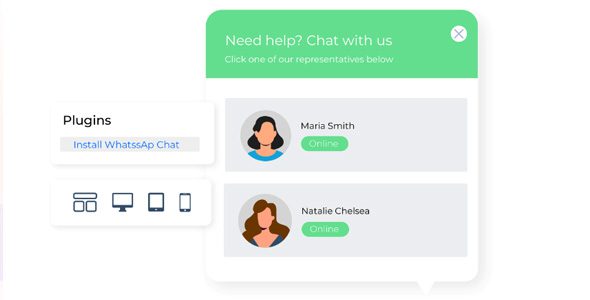
The WhatsApp Chat Pro plugin (WP Social Chat) offers rich customization options, allowing you to easily integrate WhatsApp chat functionality into your WordPress website. Here are its main features:
- Support for Multiple Agents: Set up multiple customer service agents, allowing customers to freely choose who to chat with.
- Custom Colors: Fully customize the colors of the chat button and interface to match your brand style.
- Custom Icons: Support uploading custom icons to replace the default WhatsApp icon.
- Chat Box Interface: Display a friendly chat box interface to enhance user experience.
- Custom Agent Messages: Set automatic welcome messages sent by agents.
- Custom User Messages: Preset quick messages for users to choose from, facilitating fast communication.
- Input User Messages: Allow users to fill in message information before starting a chat.
- Custom Welcome Message: Set the welcome text displayed when the chat box opens.
- User's First Message: Customize the content of the user's first sent message.
- Download Social Chat Plugin: Support integration with other social channels.
How to Install and Activate WhatsApp Chat Pro Plugin
Installing the WhatsApp Chat (WP Social Chat) plugin is very simple. Follow these steps:
- Download the plugin zip file and unzip it.
- Go to WordPress admin panel, navigate to "Plugins" -> "Add New" -> "Upload Plugin", select the zip file, and install.
- After successful installation, click "Activate Plugin".
- The admin panel will prompt you to install the base plugin (e.g., WhatsApp Chat Base). Follow the prompts to install it online.
- After installation, enter the activation key (usually obtained after purchase) to start using it normally.
Note: This plugin has been tested on version 7.2.4. Higher versions (e.g., 8.3.11) have a similar installation process. If you encounter issues during installation, refer to the official documentation or contact us.
Use Cases for WhatsApp Chat Chinese Version Plugin
This plugin is suitable for various scenarios, such as:
- E-commerce Websites: Customers can directly inquire about product details or order status via WhatsApp.
- Service Industries: Provide instant customer support to enhance customer satisfaction.
- Blogs or Content Sites: Readers can communicate with authors via WhatsApp, increasing interaction.
Through WordPress Plugin Recommendations, you can discover more similar communication tools to optimize your website's functionality.
FAQ: Frequently Asked Questions
How to install the WhatsApp Chat plugin?
Please refer to the "How to Install and Activate WhatsApp Chat Pro Plugin" section above and follow the steps. If you encounter issues, check if your WordPress version is compatible or contact the plugin's official support.
What use cases does the plugin support?
The plugin is suitable for any WordPress website requiring online communication, including e-commerce, services, blogs, etc. You can customize agents and message content based on your needs.
Which WordPress themes are compatible with the plugin?
The plugin is designed to be compatible with most modern WordPress themes. If you encounter style conflicts, try adjusting the plugin's custom style options.
How often is the plugin updated?
QuadLayers regularly updates the plugin to fix vulnerabilities and add new features. It is recommended to enable automatic updates to get the latest version.
Do I need to purchase an official key?
This plugin is the Pro version and requires a valid activation key to function properly. Please refer to the official purchase page for details.